
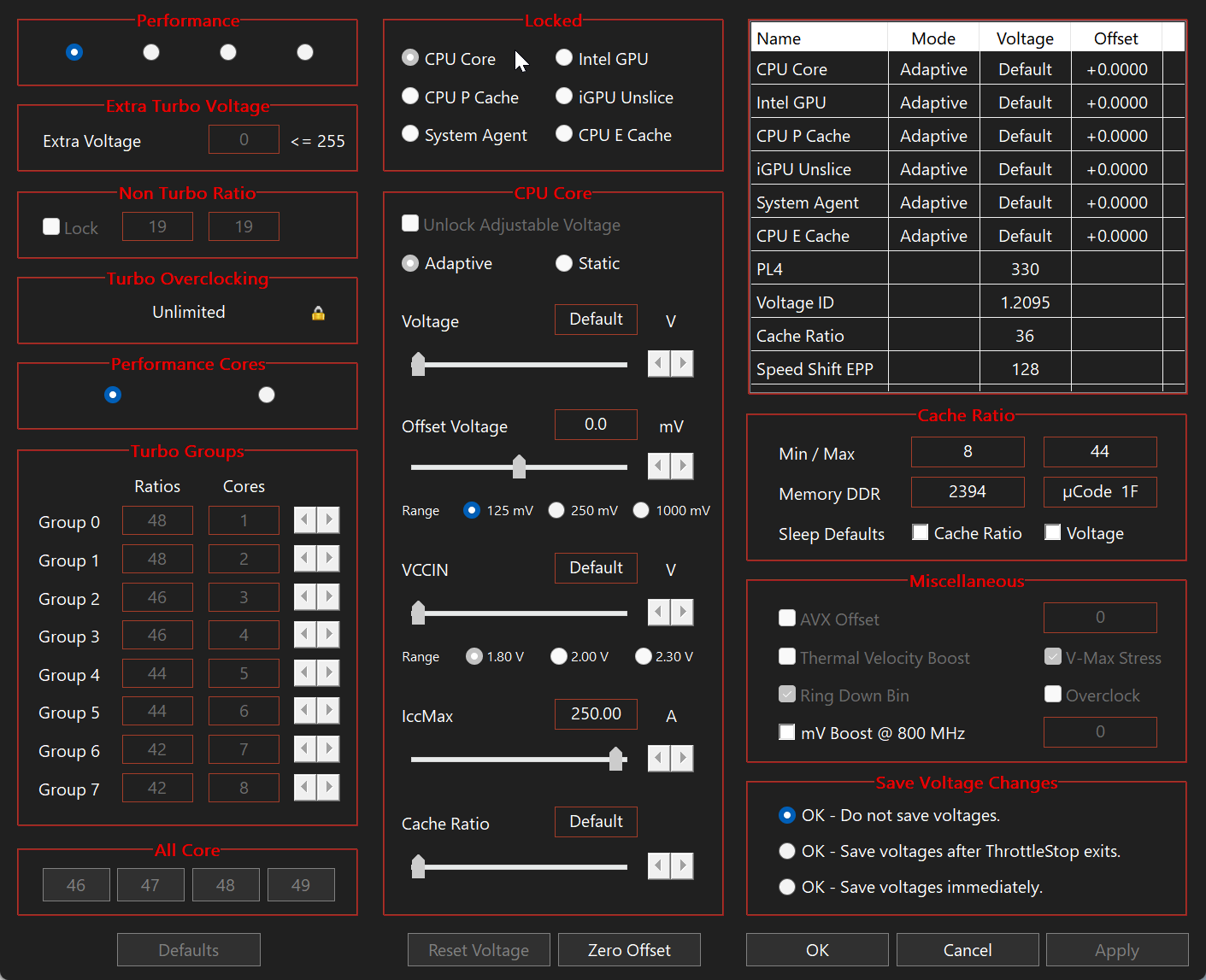
ThrottleStop for Windows
ThrottleStop is a Windows utility for monitoring Intel CPU throttling, power limits, temperatures and performance settings on supported laptops and desktop PCs.
What Is ThrottleStop?
ThrottleStop is a Windows utility created by Kevin Glynn, also known as UncleWebb. It monitors supported Intel processors and exposes advanced controls related to clock behavior, Turbo Boost, Speed Shift, voltage and power limits.
What You Can Monitor
Use ThrottleStop to observe temperature, multiplier, effective performance and limit reasons. Monitoring first helps distinguish thermal throttling from power limits, firmware policy or an unsuitable Windows power configuration.
Advanced Controls
FIVR covers voltage controls on supported systems, TPL covers turbo power limits, and Speed Shift EPP influences the preference between responsiveness and efficiency. Availability varies by CPU and firmware.
Use It Carefully
Changing voltage, power limits or protection signals can destabilize Windows or increase heat. Record stock settings, make small reversible changes and test one setting at a time.
Frequently Asked Questions
Is ThrottleStop safe?
Monitoring is low risk, but voltage, power and protection settings can cause instability or excess heat when used incorrectly.
Does ThrottleStop support every processor?
No. Controls depend on a compatible Intel CPU, BIOS and firmware.
Can ThrottleStop stop thermal throttling?
It can identify limits and adjust some controls, but it cannot repair inadequate cooling.
Related ThrottleStop Guides
How to use ThrottleStop · Undervolting guide · Safety · Troubleshooting · All guides
Independent resource: ThrottleStop was created by Kevin Glynn, also known as UncleWebb. techpowerupsoftware.com is not affiliated with or endorsed by the developer or TechPowerUp. Change hardware settings carefully and keep a recovery plan.
Detailed diagnostic guides
- CPU Temperature Spikes When Opening Apps: A ThrottleStop Checklist — Separate brief launch-time temperature spikes from sustained heat using repeatable observations, workload timing and processor-specific limits.
- Compare CPU Cooling Before and After a Change with ThrottleStop — Plan a fair cooling comparison by controlling workload, room conditions, duration, power settings and the sensor being compared.
- Laptop CPU Temperature on Battery vs AC: Compare the Right Conditions — Understand why laptop temperature comparisons need power-source, charger, power-mode and workload context.
- Room Temperature and CPU Readings: Avoid Misleading Comparisons — Record ambient conditions and airflow context when comparing CPU temperatures across seasons, rooms or cooling changes.
- Loud Fans but Low CPU Temperature: What ThrottleStop Can Tell You — Investigate fan noise without assuming that CPU temperature represents every heat source or identifies the noisy fan.
- ThrottleStop vs BIOS CPU Temperature: Why Readings May Differ — Compare firmware and Windows CPU readings with attention to sensor definitions, timing and system state.
- Compare ThrottleStop with Other Monitoring Tools Without Mixing Sensors — Check sensor labels, units and timing before deciding that two CPU monitoring tools disagree.
- Missing Samples in a ThrottleStop Log: Avoid False Temperature Conclusions — Identify logging gaps, session interruptions and unequal sampling before calculating or comparing temperature summaries.
- CPU Temperature After Cleaning: Check the Result Without Guesswork — Review cooling changes after maintenance with a saved baseline, matched workload and clear stop conditions.
- Prepare a Useful CPU Temperature Support Report with ThrottleStop — Collect the configuration, workload, sensor labels and event timeline needed for a clear temperature support request.